
FAQs
How does Telehealth work?
Our Telehealth functionality uses technology that enables real-time secure communications directly from web browsers.
Telehealth creates secure 'rooms' for both the doctor and the patient, along with a link to access the room.
Are Telehealth video consults encrypted?
All telehealth sessions are encrypted. We're using a Peer-to-Peer (P2P) service, that means the communications between the participants on the Telehealth session is direct and the conversation is not being accessed by anyone other than the participants in the session.
Healthbridge does not keep a copy of the Telehealth session, and no information is stored anywhere on our services.
How do I activate it?
- Login to myMPS
- Click on the Add-Ons icon on the top right
- Click on Telehealth Activate button
- Accept Terms of Service
- Telehealth video consultations will be accessible via the online calendar when you select " Video consult” appointment type
- An email will be sent to the practice owner with all activation and deactivation information
Once activated all providers within the practice will have access to the Telehealth service.
How will my patient connect?
Once a video consultation has been booked into the myMPS calendar, your patient will receive a special link via email and/or SMS, which contains a link to access the video room. When they click on it, they will be able to connect to the room by clicking the “Join Consultation” button.
Can I use it on my smartphone or tablet?
Yes, any device with an internet connection and that supports a microphone and camera can be used.
What happens if a video consultation drops out?
You simply close the browser window and click on the link that was shared via SMS or email. Click the "Join Consultation" button to resume the call.
Can I share my screen?
Yes you may share screens from your laptop, tablet and smartphone
Can I record my session?
Not at the moment, but this is a feature we are considering for a future release.
How many people can I have in a session?
There can only be 2 participants in a call.
Does the patient's link change?
No, the video appointment link remains static and won't change. Each video appointment booking has a unique link specific to the patient for that specific video consultation.
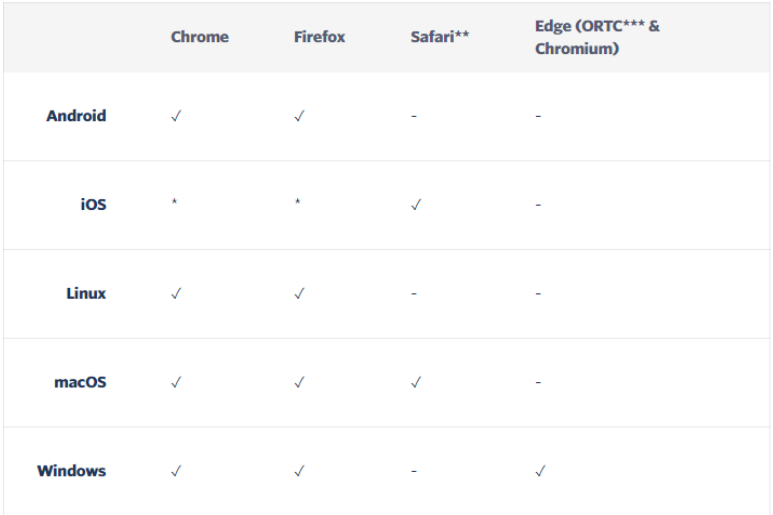
What are the supported devices required for Telehealth?
Most modern devices will work fine, we support the most recent and the two previous versions of these browsers unless otherwise indicated.
Are you able to distinguish Telehealth appointments in the calendar?
To easily identify Telehealth appointments in the Calendar book the " Video consult" type
- A video icon will show for “Video consult” appointments.
- If the video icon is black, it means that no one has joined the video room
- If the video icon is green, it means that someone has joined the video room.
- Clicking on the video icon will open the video room directly, without first having to open the Appointment Summary modal
What do my patients need?
Your patients will need to have a stable internet connection and a device that supports video and audio. However, they don't need anything super fancy—their computer or mobile devices will do just fine. To access the Telehealth video appointment, they'll simply need to click the video link in their appointment email or SMS reminders.
Do my patients receive any notifications?
If you have activated the Telehealth service, your patients will receive SMS and email reminder reminders with the video link to the video consultation. See below example of additional information for the patient in the email reminder to ensure a smooth consultation experience between you and your patients:
- Set yourself a reminder to join the video appointment on time
- Find a quiet place and ensure good lighting
- Connect with a camera-enabled computer or smartphone with good wifi or cellular data connectivity
- Close any unnecessary programs and ensure that you’re using the Chrome or Firefox browser. To test your browser visit https://www.whatsmybrowser.org/
- Once you click the appointment video link to join the appointment please accept all prompts
- To allow the use of your camera and microphone for the video consultation
- To consent to have a video consultation with the doctor.
My patient didn't get the link to their appointment. How can I resend it?
If your patient didn't get the link for their Telehealth appointment, you're able to copy it and resend it to them via email or SMS. To do this, find the appointment on the calendar, open it, and then copy the video invite link.
Note: Please also ensure that appointment reminder are enabled on the myMPS calendar settings.
My patient has clicked on the video link, but it's not working
Please ask your patient to check that they are using the video link specific to the scheduled appointment and not a link for a previous video appointment.
You may also need to ask a few questions to try and resolve the issue, eg:
- What happens when you try to open that link?
- Are you getting an error message?
- Does it say that their browser isn't supported?
- Have you tried a different browser or device? What happens?
If Healthbridge Telehealth still isn't working despite trying a different browser or device, you can reach out to our Healthbridge support team on 0860 200 222 and we will assist you.
I'm getting a message that says my browser isn't supported. What does this mean?
While Telehealth consultations are supported by most browsers, we recommend Firefox or Chrome
Supported browsers include recent versions of Chrome and Firefox, and Safari 12 or higher. You can also use your iPhone or Android device to join your Telehealth appointment.
Note: If you're on an iPhone, Safari is the only browser that will work. Chrome or Firefox on your iPhone will not work for Telehealth appointments.
What happens if I deactivate the Telehealth service?
If you deactivate the service all video appointment links that have been created for scheduled video appointments will be deleted. You will be billed for monthly usage up until deactivation date. Please note that any reminders with video links that have been sent out to patients cannot be deleted and the practice will need to contact patients accordingly.
What to do if the doctor is running late for a video appointment?
If the doctor is running late for an appointment we recommend that the doctor or practice administrator click on the video link, capture your name, and then click on the “share-message” icon on the right hand corner of the screen to inform the patient that the doctor is running a few minutes late.
Note: The “share-message” feature is available to communicate with the patient before the patient or doctor joins the video consultation.
How much data will be needed for a video appointment if I use my cellular data?
We strongly recommend using wifi or a wired internet connection to ensure a decent quality of service. If you are unable to use wifi connection or wired connection you can make use of a mobile data connection, however, these services have traditionally been quite costly.
We estimate that for an average 10 minute consultation you will use 250MB of data.
For optimal video resolution settings we recommend:
For your webcam, use VGA @ 24fps, or alternatively consider HD @ 24fps if the codec has HW support.
For your screen, use HD @15fps, or alternatively consider Full HD @ 15fps if the codec has HW support.
Troubleshooting
What must I do if I can’t hear my patient.
If you can't hear the patient, chances are that either their microphone is turned off, or your computer's volume isn't on. Use the chat tool (there's a little 'chat' icon in the bottom-right corner of your screen)  to double-check with your patient that their microphone is working. If it is, try checking the volume on your computer.
My patient can't hear me.
If your patient can't hear you, then it's likely that either your microphone isn't on, or their volume is off. We'd recommend first checking your microphone. On the screen, check if there is a line through the little microphone icon?

If there is, then click on it.The line should disappear and your patient should be able to hear you.
If there's no line, then it means your microphone is working and you will need to ask your patient to turn up their volume. Again, the chat tool can be used to communicate while you're trying to sort out the sound.
I can't see my patient.
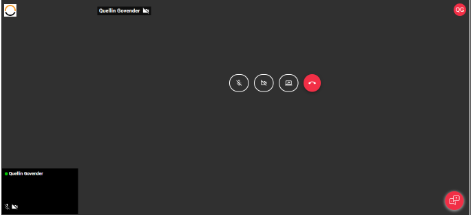
If your patient has their camera turned off, you'll see something like this:
Ask them to double-check that the camera icon on their screen doesn't have a line through it. If it does, they'll need to click that icon to turn on their camera.
My patient can't see me.
If your patient can't see you, the first thing to check is that your camera is turned on. Have a look at the camera icon on your screen, if there's a line through it, click on it, and this should turn your camera on.

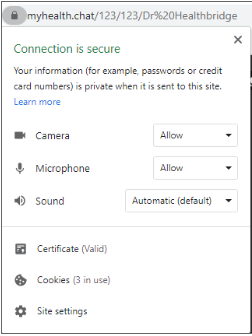
If that doesn't work, it might be that your browser isn't 'allowing' your camera to turn on (you may have missed the prompt when you joined the call, requesting that you allow your browser to access your camera and microphone).
At this point, it's best to look at your video settings. Press the little ‘Lock’ icon in the top left corner of the browser window. This will open up a small box with your video and microphone settings. Make sure you allow all settings.
If you're still unable to get your camera to work, please contact Healthbridge 0860 200 222 and we will assist you.
I accidentally closed my screen
Not to worry, just find the appointment in the myMPS calendar, and press the Join video link for that patient. That will bring you back to the video consultation.
I accidentally hung up, how do I reconnect?
Just press the ‘Join Consultation’ button, and that'll bring you right back into the video room.
Comments
0 comments
Please sign in to leave a comment.